Resources Omnichannel
Turn channel silos into a single strategy with omnichannel optimization
Recruiting fraud is a growing issue for many companies.
The Trade Desk takes this issue seriously and is taking steps to address it.
Our platform
Share:
When campaigns are not delivering as expected, traders need to identify the root cause quickly. But troubleshooting often means piecing together information from multiple settings, reports, charts, and workflows before determining what action to take.
The new Applied Settings view streamlines that process by bringing key diagnostic information into a single workspace for an individual ad group. Here, you can see pacing and performance at the top, focus on the settings that have been applied, review scale impact by dimension, and act on inline recommendations that point to potential issues.
The result is a faster, more efficient troubleshooting experience that reduces the need to switch between views or search across different areas of the platform.
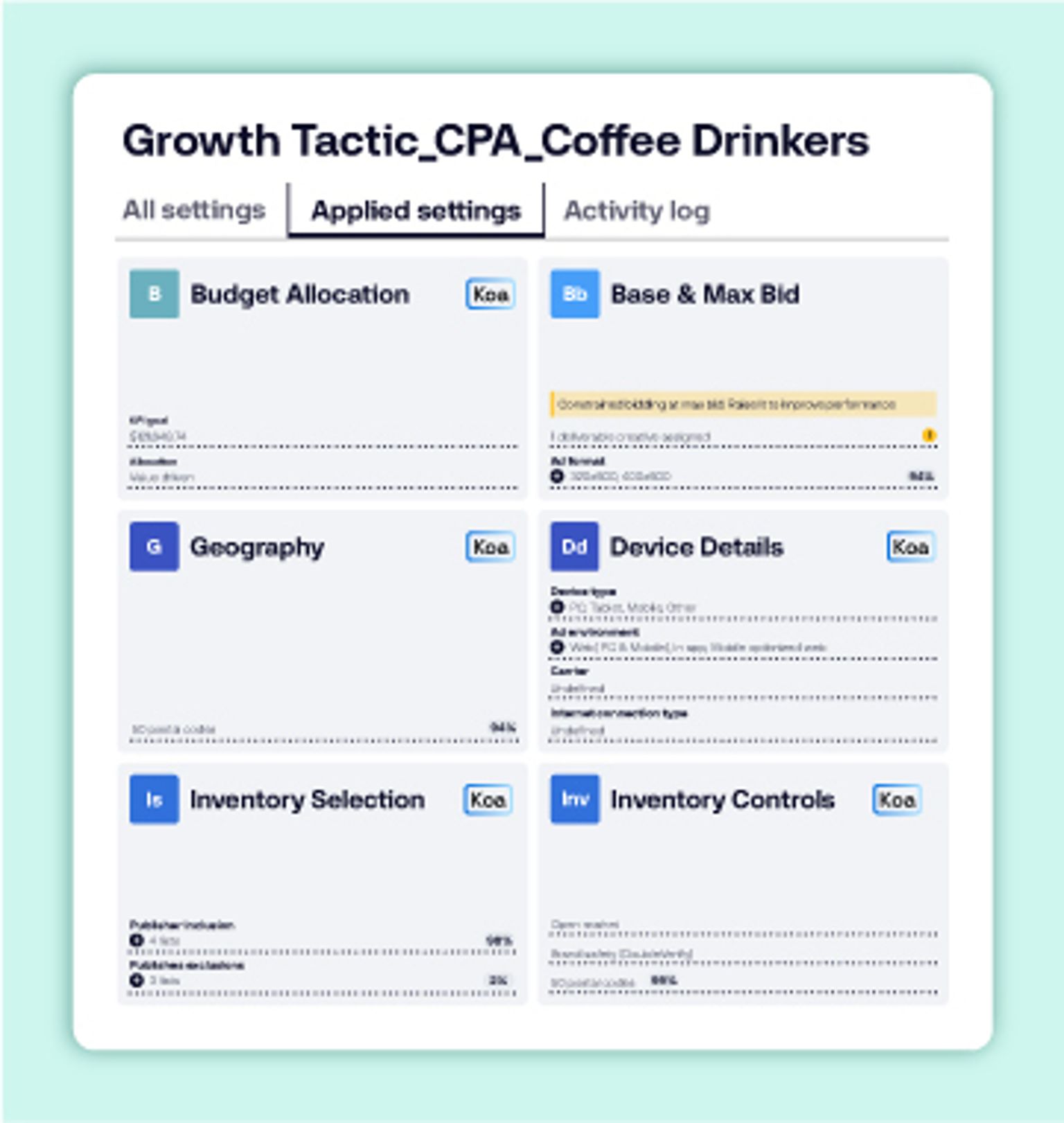
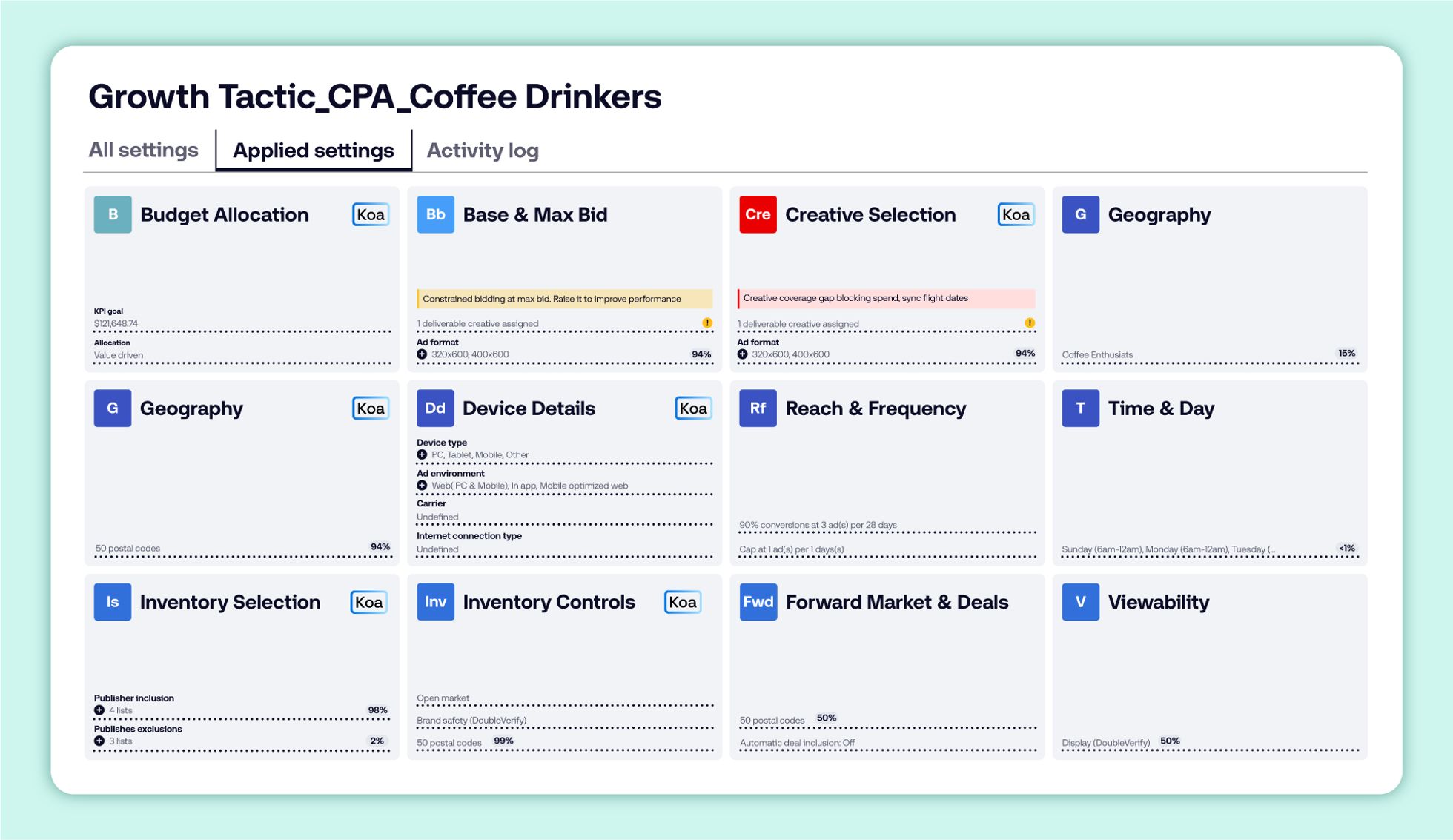
The Applied Settings view gives platform users a dedicated workspace for diagnosing and optimizing a single ad group.
From this view, you can:
Start with pacing and performance: Review the ad group summary, pacing indicators, and seven-day spend and performance charts investigating individual settings.
Focus on applied settings only: View only the settings currently applied to the ad group, reducing noise and making troubleshooting more efficient.
Spot potential blockers quickly: Use color-coded tile indicators to identify issues at a glance. Red tiles highlight settings that require attention, while yellow tiles surface optimization opportunities that help improve delivery or performance.
Prioritize what to fix first: Inline recommendations help surface important issues, including full-spend blockers, decisioning reductions, and relevance reductions.
Move directly into action: Select a recommendation to open the corresponding settings and make changes in context.
The Applied Settings view is currently available in closed beta. To request access, reach out to your account management team.
1. Navigate to an ad group by selecting it or searching for it.
2. Open the Applied Settings tab.
3. Review the pacing and performance charts at the top of the page.
4. Scan the applied setting tiles for scale impact scores, blockers, and recommendations.
5. Select a recommendation to open the relevant tile and take action.
For additional questions or support, contact your representative at The Trade Desk.
This information is provided solely for background and is not a representation or guarantee of any future performance.
Resources Omnichannel
Resources Our platform

Resources Our platform