Resources Connected TV
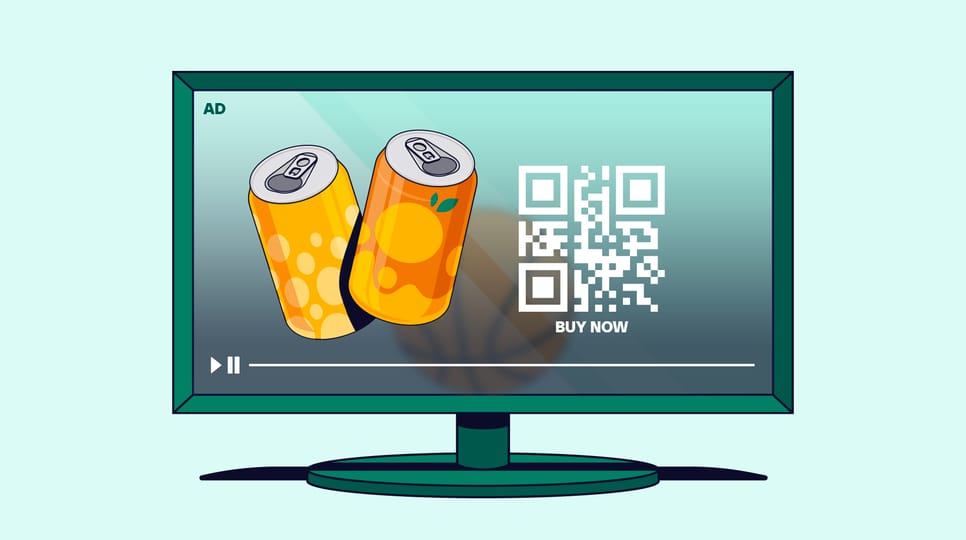
Pause ads are here, signaling the next evolution of CTV
Recruiting fraud is a growing issue for many companies.
The Trade Desk takes this issue seriously and is taking steps to address it.
Our platform
Share:
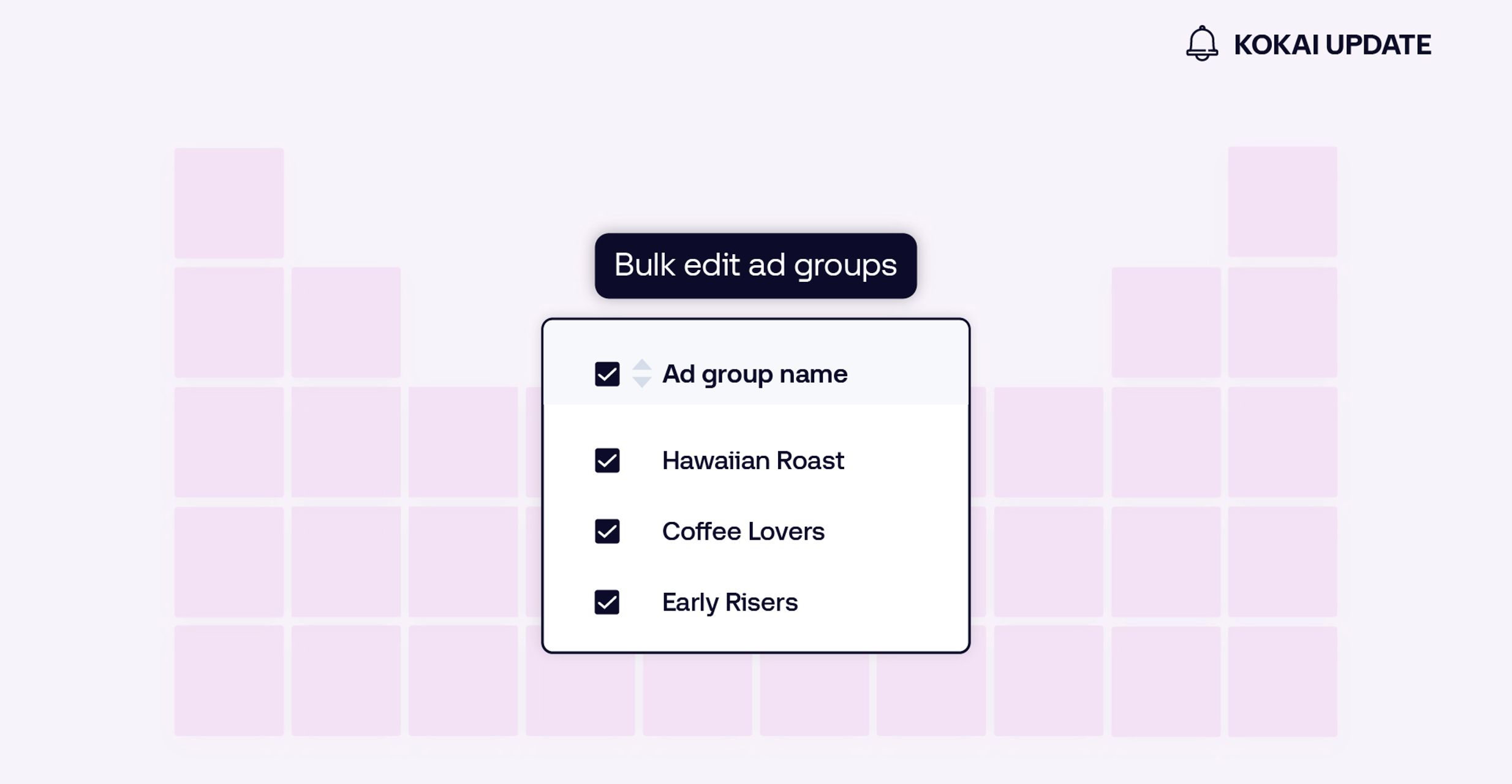
Bulk editing is a powerful efficiency tool in programmatic campaign management. When you’re managing multiple campaigns and ad groups, bulk edits can save significant time on repetitive work — setting up ad groups across geos, applying audiences to different tactics, or enforcing viewability best practices at scale.
And now we are introducing forecasting insights as part of an upgraded bulk editing experience. The new experience helps you quickly understand if your edits will help or limit your ad group’s scale. This gives you a quick, in-the-moment gut check, right when you need it.
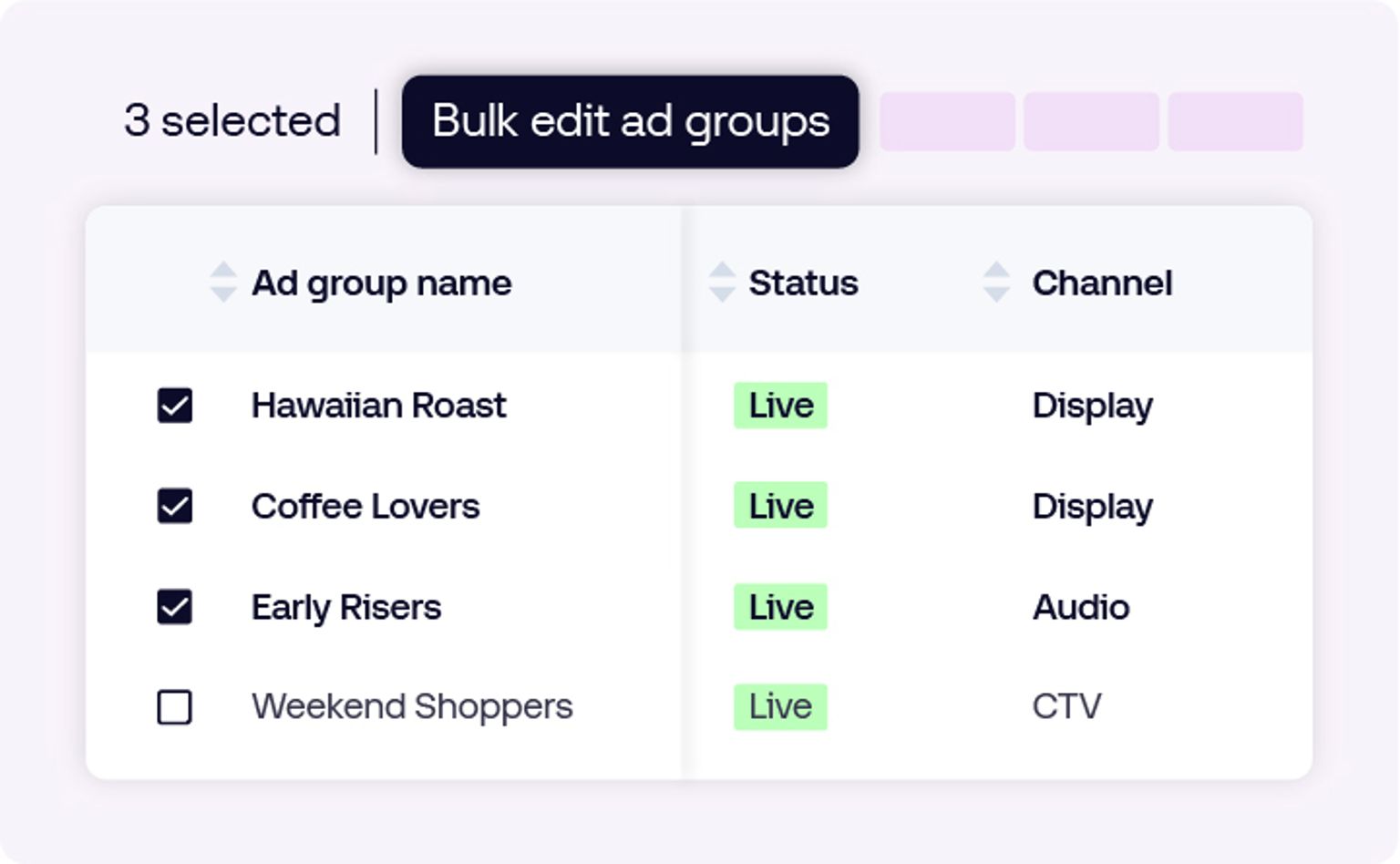
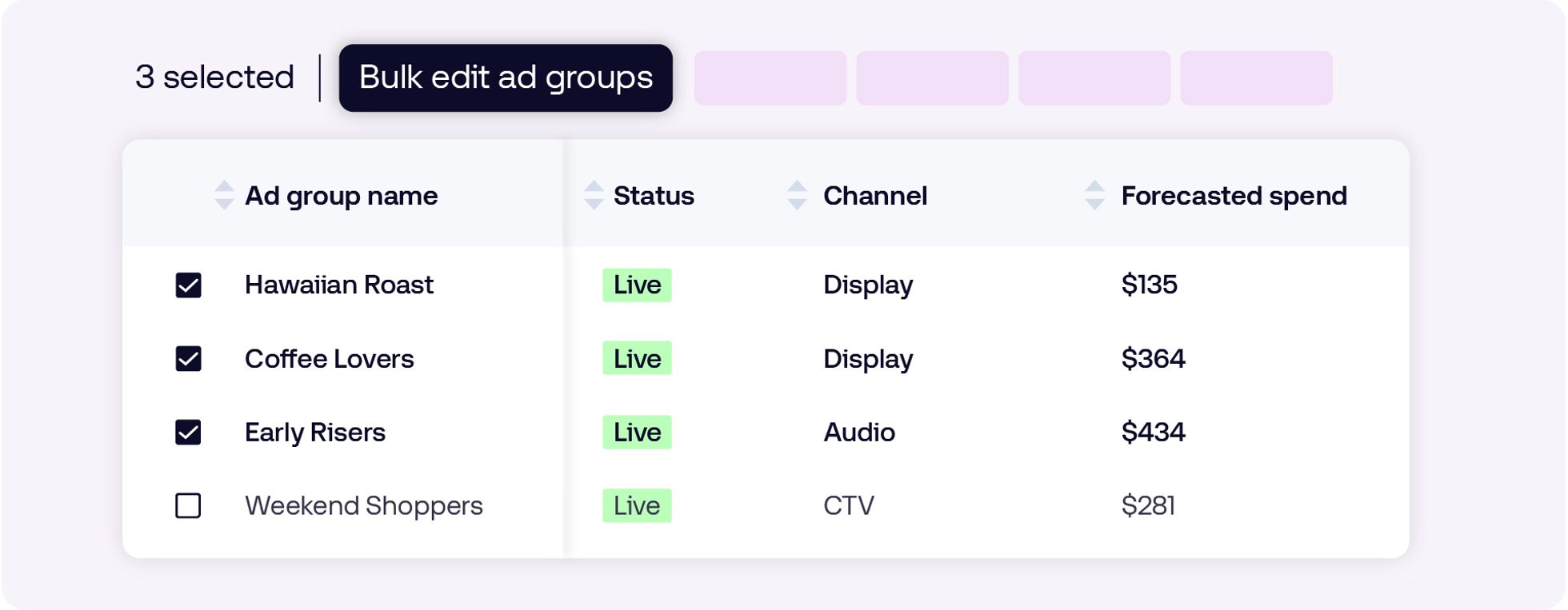
A scale constraint column now appears in the bulk edit table:
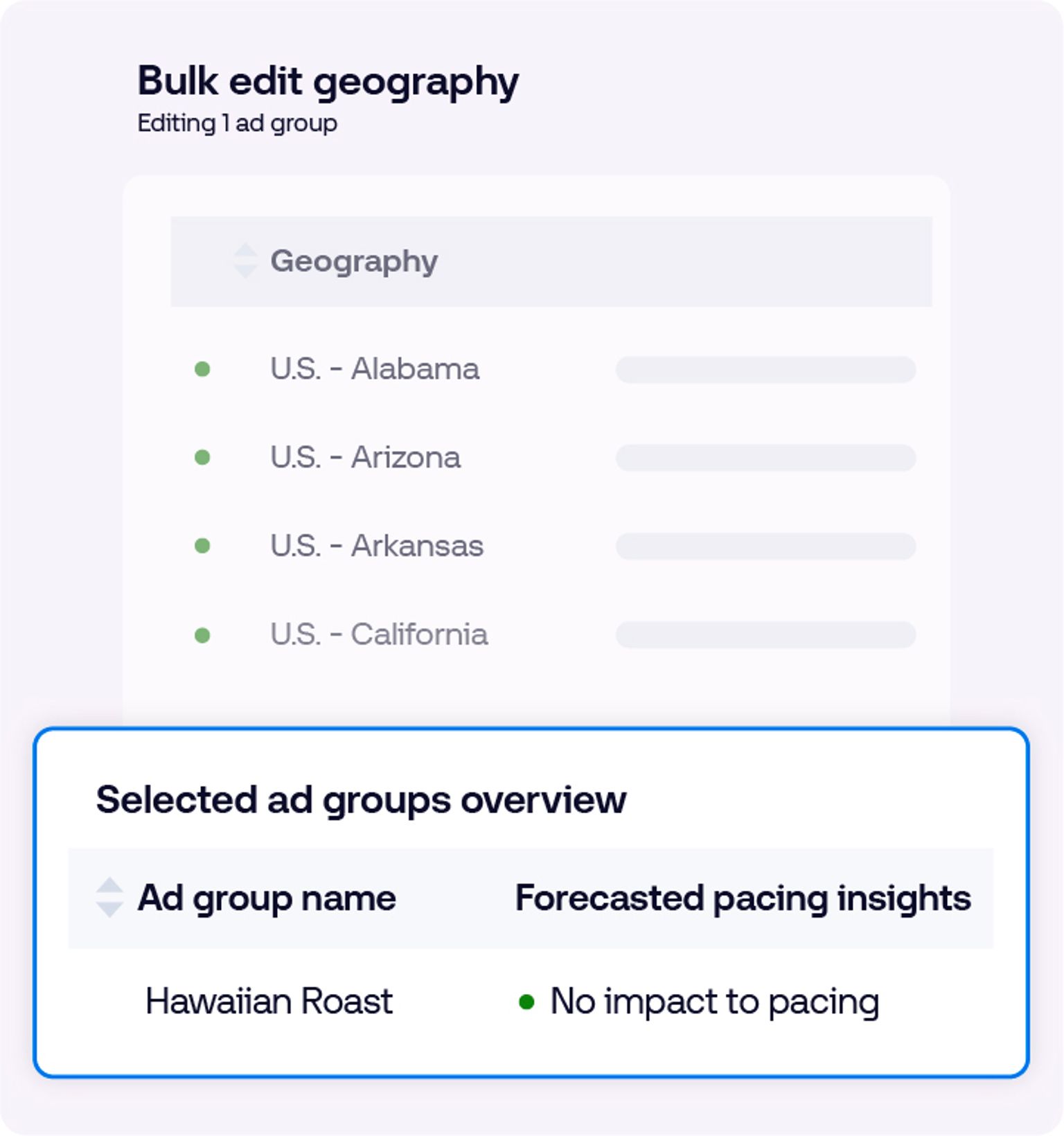
Get forecasting insights before you save. Stage a target or block bulk edit, and the platform shows the directional impact on the ad group, so you can review what a change does before committing it.
Hover for more context. Hover over the forecasting insights to see additional details on what’s driving the projected change.
Work at your pace. You can save your inputs anytime, even while the projection is still loading.
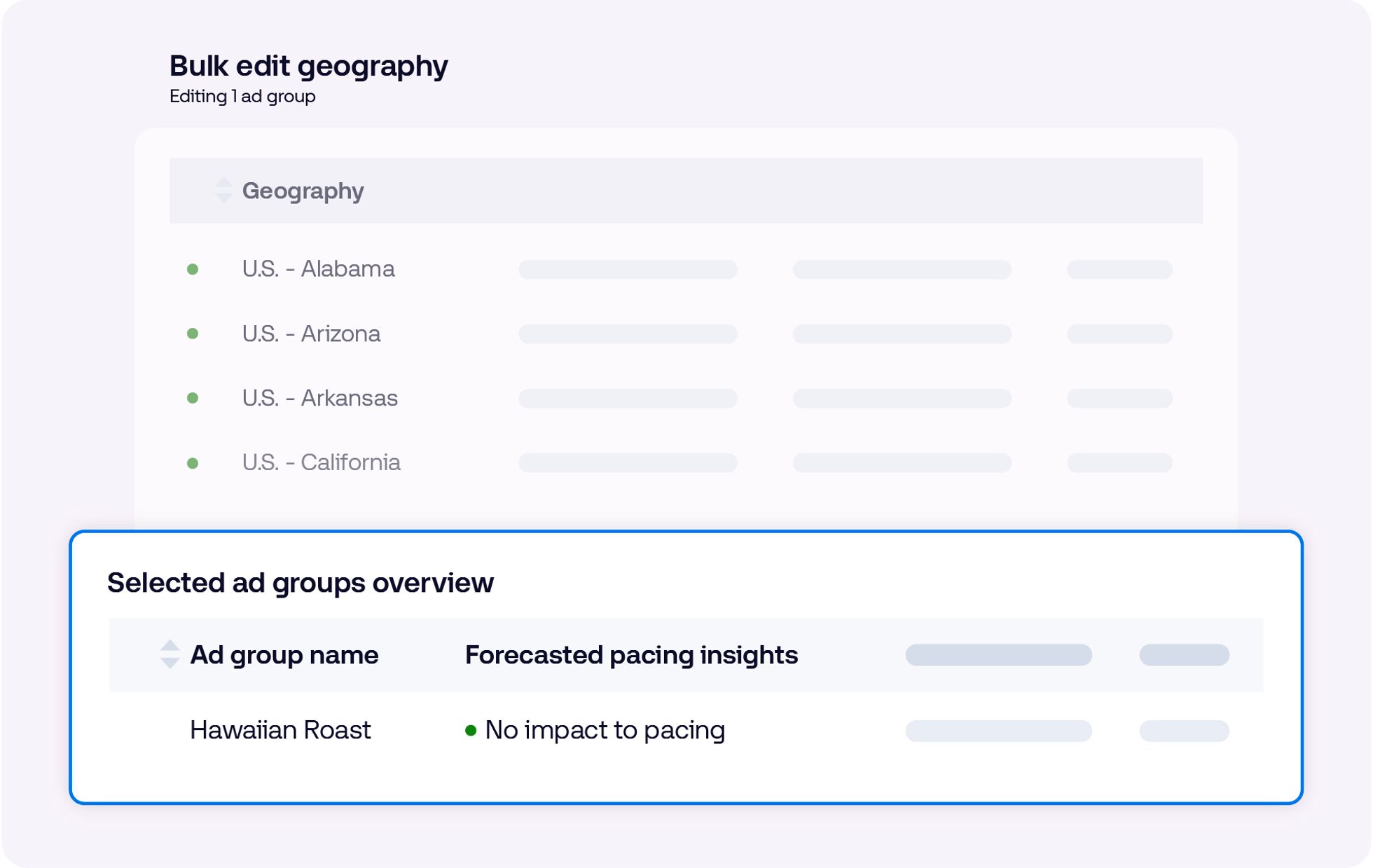
You can save changes without waiting for additional insights to generate.
Scale impact is rolling out across bulk edit dimensions in stages, with our first set of dimensions now available. Dimensions include device type, geography, viewability, time of day, and more. To use it:
Select the ad groups you want to edit through the portfolio or campaign QA view to open the bulk edit flow.
Stage a target or block change (for example, adjusting your device targeting), and save it from the modal.
On the table, review the Forecasted Pacing insights column to see potential impacts on pacing.
Confirm your edit when it reflects what you intended.
Visit the Knowledge Portal for a more detailed walk-through (platform login required), or reach out to your representative at The Trade Desk for additional support.
This information is provided solely for background and is not a representation or guarantee of any future performance and availability. Not all capabilities mentioned here are currently available, and we intend to continue rolling out enhancements over time.
Resources Connected TV
Insights Omnichannel

Resources Our platform